Model-driven Apps | Dynamically Updating Dropdown Values with Custom JavaScript in BPFs
Recently, I was working on a project where I came across an interesting requirement:
👉 The allowed dropdown values of a field needed to change dynamically depending on the active Business Process Flow (BPF) stage.
Sounds simple, right? But here’s the catch — this isn’t possible out of the box.
While business rules in Dataverse can control field updates, errors, visibility, or editability, they can’t control which values are available in a choice/dropdown field.
So, here’s how I approached the problem 👇
🎯 The Requirement (Example)
Process Stage: BPF Stage 1 → Allowed Values: Value A, Value B
Process Stage: BPF Stage 2 → Allowed Values: Value C, Value D
Since no OOTB feature could achieve this, I explored Power Platform’s flexibility and ended up solving it with a custom JavaScript web resource attached to the form.
If you’re facing something similar, here’s how you can do it step by step.
🛠️ Pre-requisites
Dataverse Table – I used a custom table called Inspection (you can use any existing/custom table).
Two Choice Columns
Inspection Status
Inspection Status Reason
Business Process Flow (BPF) – Stages should align with Inspection Status values, with a data step under each stage pointing to Inspection Status Reason.

⚙️ Choice Values Setup
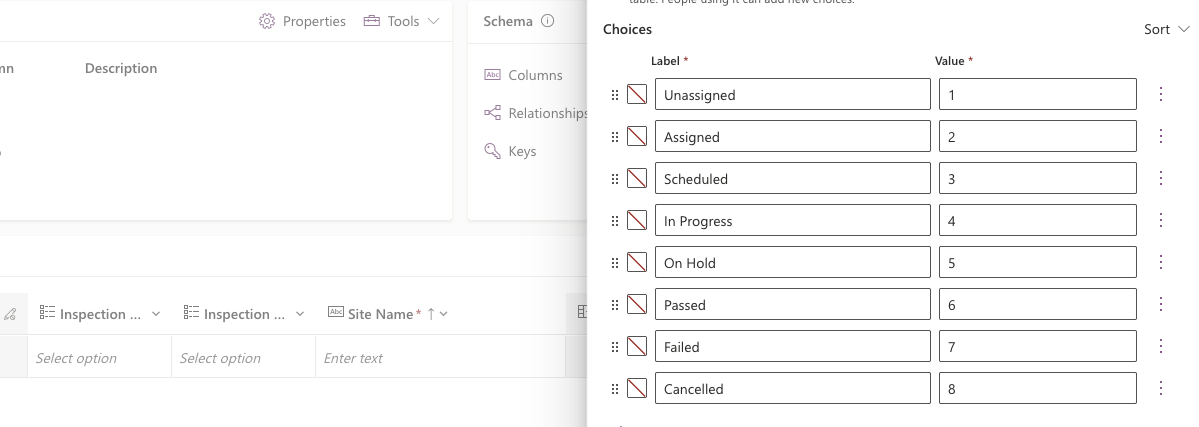
We’ll use the following example:
Inspection Status: New; Inspection Status Reason: Unassigned, Assigned
Inspection Status: Active; Inspection Status Reason: Scheduled, In Progress, On Hold
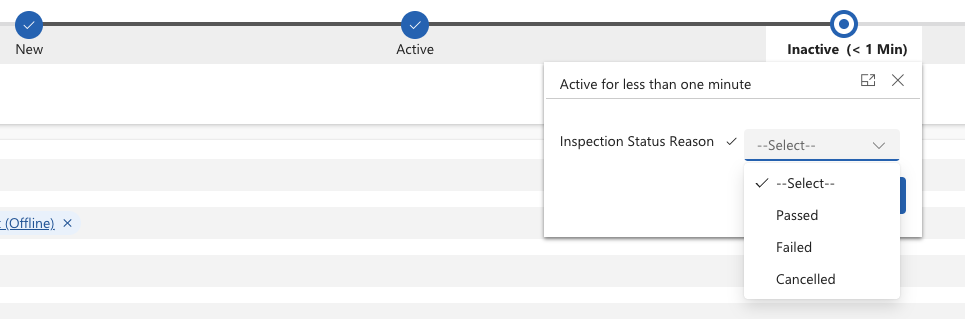
Inspection Status: Inactive; Inspection Status Reason: Passed, Failed, Cancelled
🏗️ Creating the Business Process Flow
Create a new BPF with stages that match your Inspection Status values (New, Active, Inactive).
Under each stage, add a Data Step and select the Inspection Status Reason column.
Save and activate the BPF.

🔨 Adding the JavaScript Logic
We’ll now write a JavaScript function that does two things:
1. Automatically set the Inspection Status field
Detect the active BPF stage.
Map the stage to the correct Inspection Status value.
Update the Inspection Status field automatically.
Example:
If the stage = Active → Inspection Status is automatically set to 2.
2. Filter the Inspection Status Reason values
Grab the Inspection Status Reason dropdown (from the BPF header).
Clear all existing options.
Add back only the allowed options for the current stage.
Example:
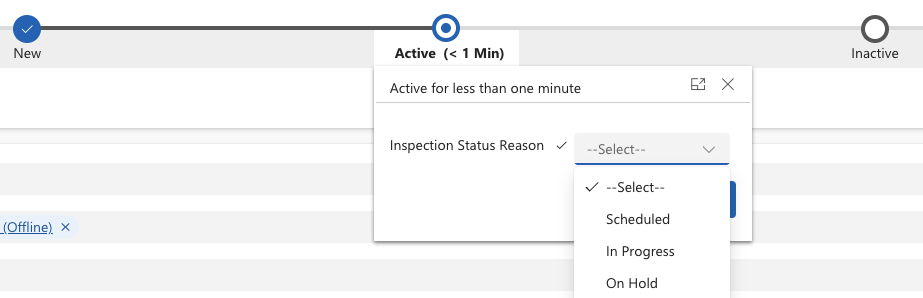
If the stage = Active → the user will only see:
Scheduled
In Progress
On Hold
This prevents users from selecting invalid options and keeps the form aligned with the BPF.
⚡ Making the Logic Run Automatically
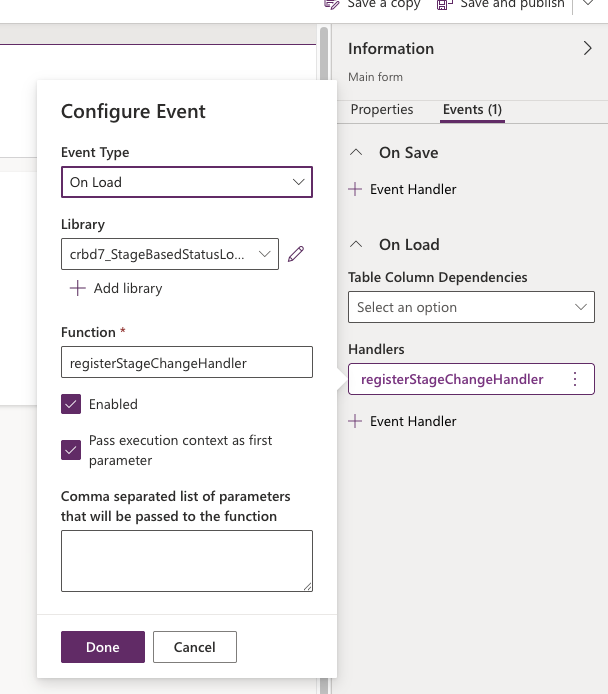
We’ll add a second function to ensure the logic runs:
Immediately when the form loads.
Every time the BPF stage changes.
function applyStageBasedStatusLogic(executionContext) {
  const formContext = executionContext.getFormContext();
  console.log('Running applyStageBasedStatusLogic');

  const { process } = formContext.data;
  if (!process) {
    console.log('No process found on form.');
    return;
  }

  const activeStage = process.getActiveStage();
  if (!activeStage) {
    console.log('No active BPF stage.');
    return;
  }

  const stageName = activeStage.getName();
  console.log('Active stage name:', stageName);

  // --- 1. Auto-update Inspection Status field ---
  const statusField = formContext.getAttribute('crbd7_inspectionstatus');
  if (statusField) {
    // Map stage names to option values of crbd7_inspectionstatus field
    const statusOptionMap = {
      New: 1,
      Active: 2,
      Inactive: 3,
    };

    const newStatusValue = statusOptionMap[stageName];

    if (newStatusValue !== undefined && statusField.getValue() !== newStatusValue) {
      console.log('Updating status to:', newStatusValue);
      statusField.setValue(newStatusValue);
      statusField.setSubmitMode('always'); // Ensure it's saved
    }
  } else {
    console.log('Status field not found.');
  }

  // --- 2. Filter Inspection Status Reason in BPF Data Step ---
  const reasonField =formContext.getControl('header_process_crbd7_inspectionstatusreason');

  if (!reasonField) {
    console.log('Status Reason control not found in BPF.');
    return;
  }

  reasonField.clearOptions();

  // Define available options for each stage
  const reasonOptionMap = {
    New: [
      { text: 'Unassigned', value: 1 },
      { text: 'Assigned', value: 2 },
    ],
    Active: [
      { text: 'Scheduled', value: 3 },
      { text: 'In Progress', value: 4 },
      { text: 'On Hold', value: 5 },
    ],
    Inactive: [
      { text: 'Passed', value: 6 },
      { text: 'Failed', value: 7 },
	  { text: 'Cancelled', value: 8 },
    ],
  };

  const allowedReasons = reasonOptionMap[stageName];

  if (allowedReasons && allowedReasons.length > 0) {
    allowedReasons.forEach((opt) => {
      reasonField.addOption(opt);
      console.log('Added reason option:', opt.text);
    });
  } else {
    console.log('No matching reason options found for stage:', stageName);
  }

  console.log('Finished applyStageBasedStatusLogic');
}

function registerStageChangeHandler(executionContext) {
  const formContext = executionContext.getFormContext();
  const { process } = formContext.data;

  if (!process) {
    console.log('Process control not found.');
    return;
  }

  // Run logic immediately on load
  applyStageBasedStatusLogic(executionContext);

  // Run logic every time stage changes
  process.addOnStageChange(() => {
    console.log('Stage changed, reapplying logic.');
    applyStageBasedStatusLogic(executionContext);
  });
}
✅ In Summary
The script syncs the Inspection Status field with the active BPF stage.
It filters the Inspection Status Reason dropdown so only valid options appear.
This ensures clean data entry and a smooth user experience in model-driven apps.
👩💻 Adding the Script to Your Solution
Add the JS file as a Web Resource in your solution.
Open the Inspection table’s Main Form → Form Libraries → Add Library → select your web resource.
Add the function on the On Save event (and optionally On Load) via Event Handlers.
Save & publish.
Open a record → try switching BPF stages → watch the Inspection Status Reason dropdown update dynamically 🎉
🚀 Wrap Up
With just a little bit of JavaScript, we’ve extended the power of model-driven apps beyond what’s available OOTB. This pattern can be reused across other tables and scenarios where you need dynamic dropdown values tied to process stages.
Stage: New

Stage: Active
Stage: Inactive